![ys_emblem_background_dorian_RGB.png]](https://helpcenter.yellowscan.com/hs-fs/hubfs/ys_emblem_background_dorian_RGB.png?height=40&name=ys_emblem_background_dorian_RGB.png)
The new generation of APX INS boards uses a hardware-based RTX licensing system. Unlike previous generations, where the RTX license was managed through POSPac, the license is now stored directly on the APX hardware.
When your Yellow Scan Venturer is delivered, the APX RTX license is already installed. When it expires, it must be renewed and manually installed on the APX board. Follow the procedure below to do so.
- Connect to the APX board using the procedure: https://helpcenter.yellowscan.com/knowledge/how-to-connect-to-the-applanix-imu-board
- In the menu on the left side, select Receiver Status/Receiver Options [1]
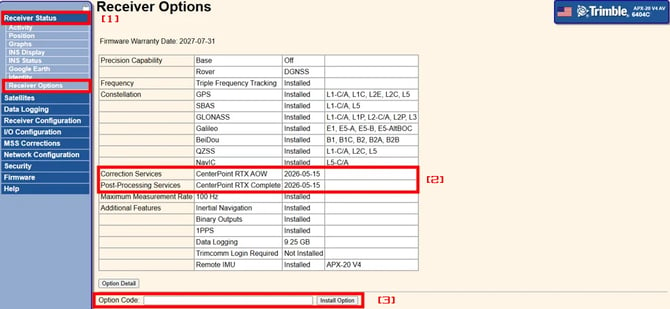
- You can check APX RTX license by looking at Correction and Post-Processing Services [2]
- If this is the first activation, the license should already be installed. In this case, the status will display 'Installed', and no further action is required.
- When the license has expired, you will see a date (2026-05-15) instead of the mention 'installed': it corresponds to the RTX license expiration date. In order to renew your license, please contact your reseller or YellowScan sales representative and specify your unit serial number. You will receive a pdf document containing a license code specific to your unit.
- Enter the code in the Option Code box and click on 'Install Option' [3]. A pop up will appear, click on 'OK'.
- Turn off the LiDAR.
- To check that the modifications have been saved, turn the LiDAR back on, reconnect to the APX board, and check that the Correction and Post-Processing services now display 'installed'. If a problem occurs, please submit a ticket at https://www.yellowscan.com/contact/ under 'Customer Support'.